 Posted: Sun Jul 23, 2006 4:31 pm
Here is a step by step guide to multiplayer flying in FS2004, using the Inspire.net.nz server (which many NZFF members use) as an example. If you are having any difficulty with this process, please post your problem in a reply below.
Method 1) Connecting once inside your aircraft.
Step 1.
Start FS2004.
Step 2.
Create a flight somewhere in NZ and put your aircraft on the parking stand of your choice. Do not use the active runway in case somebody else connects at the same time causing your aircraft to crash into each other.
Step 3.
Go to the main FS2004 menu (hit ALT on the keyboard) and then select Connect from the Flights/Multiplayer menu

Step 4.
Into the player name box put a name of your choice. (Use your NZFFac username so other members know who they are flying with!)
Into the IP address box put 203.114.130.15 (The Inspire.net.nz Server)
Click the search button, in the Sessions window the 'My Session' multiplayer game will appear.

Click the join button and you will be in the session!
---
Method 2) Connecting from the main FS2004 screen.
Step 1.
Start FS2004.
Step 2.
From the main FS2004 screen select Multiplayer and then Open Multiplayer Session.

Step 3.
Into the player name box put a name of your choice. (Use your NZFF username so other members know who they are flying with!)
Into the IP address box put 203.114.130.15 (The Inspire.net.nz Server)
Click the search button, in the Sessions window the Inspire.net.nz 'My Session' multiplayer game will appear.
Click the join button and you will be in the session! Once you are connected a textbox will appear and you can chat to other members via instant messaging or on teamspeak.
Please note:
********************************
First up, select your aircraft as normal. Bear in mind though, if you select an aircraft that someone doesn't have installed on their system, you will appear to the other player as the same plane they are flying, or ... a Cessna.
********************************
Two IMPORTANT settings when flying online are Ignore Crashes and Frame Rate. If you touch another aircraft it will cause a collision unless Ignore Crashes is off.
********************************
When you connect to a Multiplayer session, all PC's interconnect with each other (so if you cannot connect check your firewall/router ports/Nortons etc), and data is transferred to each PC based on the number of frames per second the sim is rendering. PLEASE, set it to no more than 25.
********************************
Method 1) Connecting once inside your aircraft.
Step 1.
Start FS2004.
Step 2.
Create a flight somewhere in NZ and put your aircraft on the parking stand of your choice. Do not use the active runway in case somebody else connects at the same time causing your aircraft to crash into each other.
Step 3.
Go to the main FS2004 menu (hit ALT on the keyboard) and then select Connect from the Flights/Multiplayer menu
Step 4.
Into the player name box put a name of your choice. (Use your NZFFac username so other members know who they are flying with!)
Into the IP address box put 203.114.130.15 (The Inspire.net.nz Server)
Click the search button, in the Sessions window the 'My Session' multiplayer game will appear.
Click the join button and you will be in the session!
---
Method 2) Connecting from the main FS2004 screen.
Step 1.
Start FS2004.
Step 2.
From the main FS2004 screen select Multiplayer and then Open Multiplayer Session.
Step 3.
Into the player name box put a name of your choice. (Use your NZFF username so other members know who they are flying with!)
Into the IP address box put 203.114.130.15 (The Inspire.net.nz Server)
Click the search button, in the Sessions window the Inspire.net.nz 'My Session' multiplayer game will appear.
Click the join button and you will be in the session! Once you are connected a textbox will appear and you can chat to other members via instant messaging or on teamspeak.
Please note:
********************************
First up, select your aircraft as normal. Bear in mind though, if you select an aircraft that someone doesn't have installed on their system, you will appear to the other player as the same plane they are flying, or ... a Cessna.
********************************
Two IMPORTANT settings when flying online are Ignore Crashes and Frame Rate. If you touch another aircraft it will cause a collision unless Ignore Crashes is off.
********************************
When you connect to a Multiplayer session, all PC's interconnect with each other (so if you cannot connect check your firewall/router ports/Nortons etc), and data is transferred to each PC based on the number of frames per second the sim is rendering. PLEASE, set it to no more than 25.
********************************

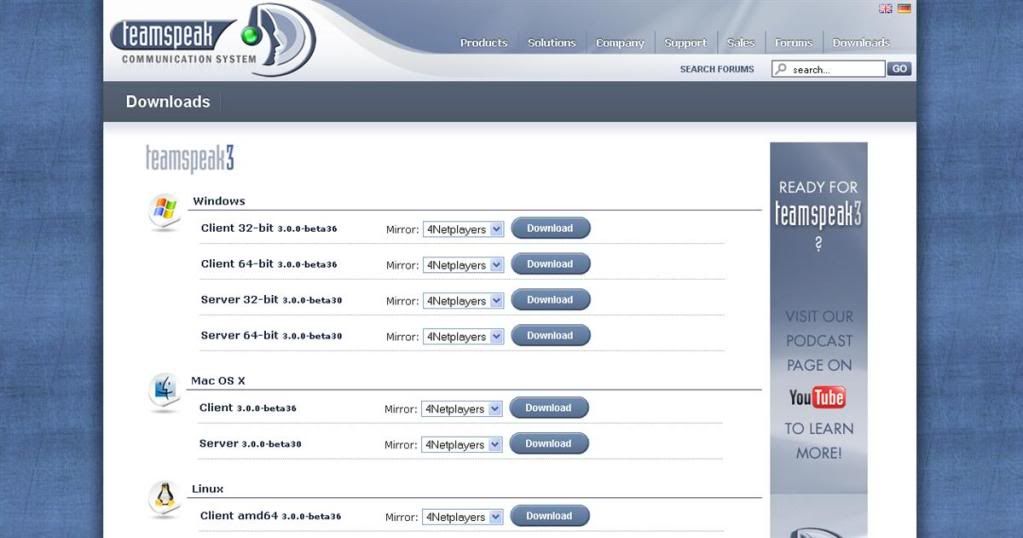
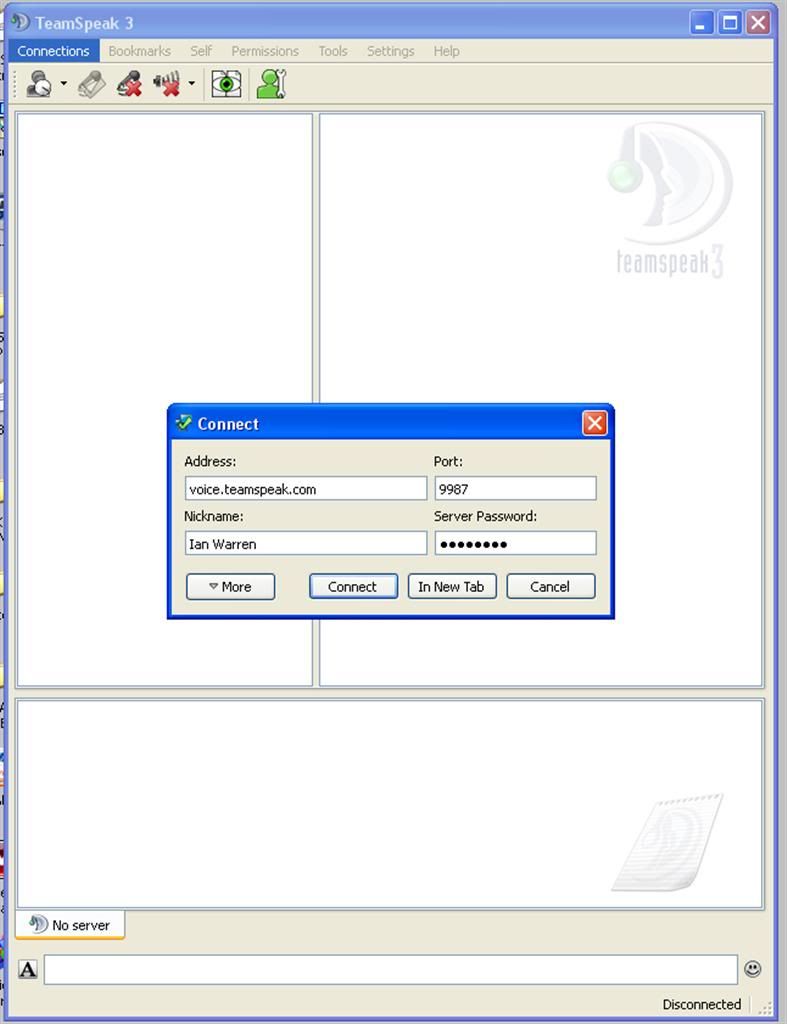
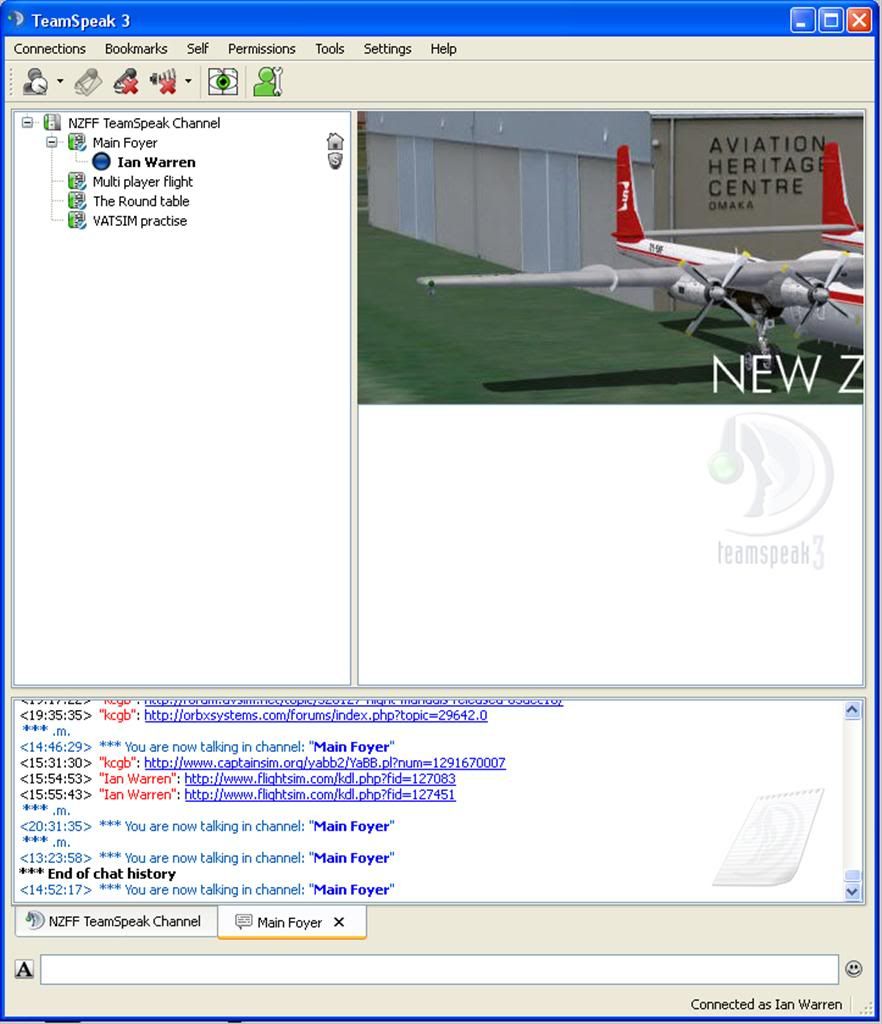
 ) I finally found the answers, and made one bang of a tutorial explaining the problem,

 ...!
...!
 ...!
...! ...!
...!
 ...
... ...!
...!