 Posted: Mon Mar 05, 2007 8:28 pm
I have the POSKY Boeing 757 model in the RNZAF colours (posky_757_2k2_rnzaf.zip), although I find the grey colour to be distinctively different from the real aircraft.
So, what I am wondering is, is it possible to simply replace one colour with another (ink dropped from a photo I took) in photoshop (My Dad has the full CS version, although I mainly use Arcsoft Photostudio for my editing).
What I have done so far is use the fill colour to replace the dark grey, but it leaks in every window on the fuselage and looks crap, although it only took a few seconds and a conversion through DXTbmp.
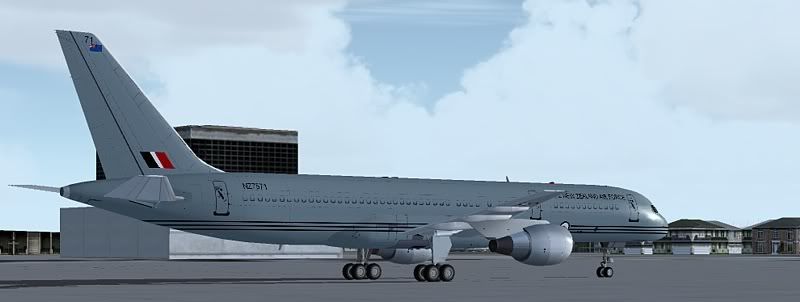
Any help would be much appreciated. This is for my own personal use of course, I am not about to go editing and reuploading the authors work behind their back- cheers.
So, what I am wondering is, is it possible to simply replace one colour with another (ink dropped from a photo I took) in photoshop (My Dad has the full CS version, although I mainly use Arcsoft Photostudio for my editing).
What I have done so far is use the fill colour to replace the dark grey, but it leaks in every window on the fuselage and looks crap, although it only took a few seconds and a conversion through DXTbmp.
Any help would be much appreciated. This is for my own personal use of course, I am not about to go editing and reuploading the authors work behind their back- cheers.