Page 1 of 1

PostPosted: Fri Feb 25, 2011 1:15 am
by brendan
Ok I use Photoshop, but once ya get the jist you should be able to use any paint programme.


Step 1 * Take ya screenshot

Step 2 * Resize image to 1080 pixals
It smooths the original image


Step 3 * Sharpen once


Step 4 * Take the manual mask tool and mask around the plane only


Step 5 * Click edit then copy


Step 6 * Now click select then Deselect ( this gets rid of the mask around the plane )


Step 7 * Go to filter and click blur then motion blur


Now change motion blur to 23%, it's on 11% here but 23% seems to be the best for keeping the scenery relatively viewable ( the more blur percentage, the faster it looks ( up to you really )


RIGHTO nearly there 2 more steps!!

Step 8 * Now go to edit at the top and click paste, you should have the CLEAR copy of the cutout pasted in


Step 9 * Now click on your main tool , left click over the cutout and hold the button and move it into postion over the blurred one and ya done!!


And thats all there is too it LOL , once ya familiar with the tools ya can do this from step 1 to 10 in about 2 minutes.
Hope that helps guys , have fun , I reckon it really brings them to life.
Brendan.

PostPosted: Fri Feb 25, 2011 9:37 am
by AndrewJamez
Thanks for that. I have the corel paint shop but I 'm sure it is a similar process.

PostPosted: Fri Feb 25, 2011 12:16 pm
by AndrewJamez
I tryed that sequence with the pic i entered and apart form the different names it was pretty much the same. Only prob is that if the plane has terrain behind it, you have to get real close with your cutting or it stands out a mile away.

PostPosted: Fri Feb 25, 2011 1:50 pm
by Dion500
If you have to, you can use that magnet select tool or what ever its called haha (im no pro at photoshop)
That should stick to the aircraft's image pretty well if you have to get that close. Only problem i found with that is when you get to the prop, it doesnt really like to stick round the edge of that very well.

I love this motion blur stuff, iv had a play with a few of mine. Makes the plane almost jump out at you, an almost 3D look, great stuff.

PostPosted: Fri Feb 25, 2011 2:28 pm
by deaneb
AndrewJamez wrote:
QUOTE (AndrewJamez @ Feb 25 2011, 01:16 PM) <{POST_SNAPBACK}>
Only prob is that if the plane has terrain behind it, you have to get real close with your cutting or it stands out a mile away.


You should be able to use the selection tool with a feathered edge option, which prevents the hash cut edges to prevent that problem. I have that option in Paint Shop Pro, but I'm sure Photoshop can do the same.

PostPosted: Fri Feb 25, 2011 10:10 pm
by brendan
Yeah guys , sorry forgot a step LOL ( i knew it was going to happen)

after you paste the cutout on , use the blur tool and slowly go over the edges of the cut out to blur it into the background.

glad ya giving it a try!

PostPosted: Fri Feb 25, 2011 10:52 pm
by Ian Warren
Brendan biggrin.gif , good reply and tutorial , be a great help to all new shot screen punters , cheers mate smile.gif

PostPosted: Sat Feb 26, 2011 2:48 am
by Dean
Good tutorial! I use Photoshop regularly, but never really looked at or used the motion blur tool before. You have encouraged me to give it a go! Thanks.

PostPosted: Sat Feb 26, 2011 9:44 am
by AlisterC
Thanks for putting this together, very useful! smile.gif

PostPosted: Thu Mar 31, 2011 10:54 am
by Splitpin
Great post Big B......Sorry i took so long to find it.Maybe there should be a "how to" page on the forum.....a place to share the skills.
Thanks again .... thumbup1.gif thumbup1.gif

PostPosted: Fri Apr 01, 2011 5:18 pm
by wairoaboy
brendan wrote:
QUOTE (brendan @ Feb 25 2011,2:15 AM) <{POST_SNAPBACK}>
Ok I use Photoshop, but once ya get the jist you should be able to use any paint programme.


Step 1 * Take ya screenshot

Step 2 * Resize image to 1080 pixals
It smooths the original image


Step 3 * Sharpen once


Step 4 * Take the manual mask tool and mask around the plane only


Step 5 * Click edit then copy
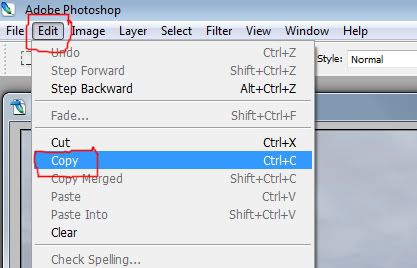


Step 6 * Now click select then Deselect ( this gets rid of the mask around the plane )


Step 7 * Go to filter and click blur then motion blur


Now change motion blur to 23%, it's on 11% here but 23% seems to be the best for keeping the scenery relatively viewable ( the more blur percentage, the faster it looks ( up to you really )


RIGHTO nearly there 2 more steps!!

Step 8 * Now go to edit at the top and click paste, you should have the CLEAR copy of the cutout pasted in


Step 9 * Now click on your main tool , left click over the cutout and hold the button and move it into postion over the blurred one and ya done!!


And thats all there is too it LOL , once ya familiar with the tools ya can do this from step 1 to 10 in about 2 minutes.
Hope that helps guys , have fun , I reckon it really brings them to life.
Brendan.

A bit beyond this 'bushboy' layman....

PostPosted: Tue Jul 22, 2014 8:11 pm
by eXup
Thanks you helped me out here , I tried this today and it looked pretty good.