Posted:
Tue May 13, 2008 3:41 pmby Anthony
Actually with in-gmae Anti-Aliasing, I think you will find it makes little difference on the sort of computer we have (meaning Daniel and me).
I have AA turned on in FS, and it makes only a little difference.
To turn it on globally, you'll have to find your graphics card settings.
On comps like ours, look by either the clock (hover your mouse over all the icons there until you see something with "Graphics" or "S3" in its name.
Or look in the actual control panel (Start > Control Panel).
On mine it was Display, Settings, Advanced. Then you get lots of options.
Also, in that same place, under "Troubleshoot" check that Hardware Acceleration is set to what it should be.
One more place I think I had a look in for mine, was under Control Panel, then System, then Advanced, then Performance, then Settings. But I can't 100% remember.
Cheers
Anthony
Posted:
Tue May 13, 2008 6:03 pmby ardypilot
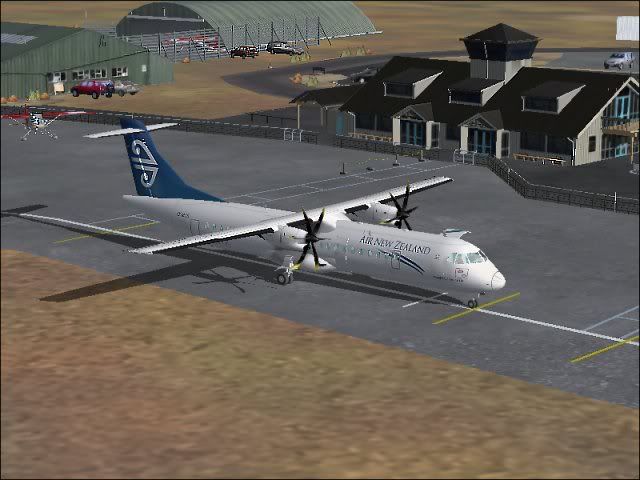
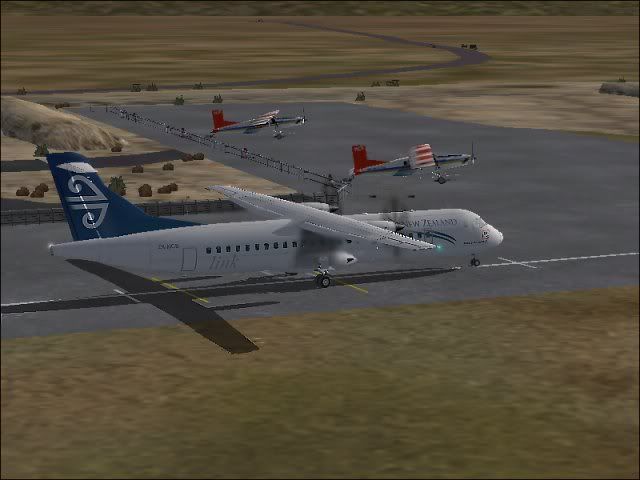
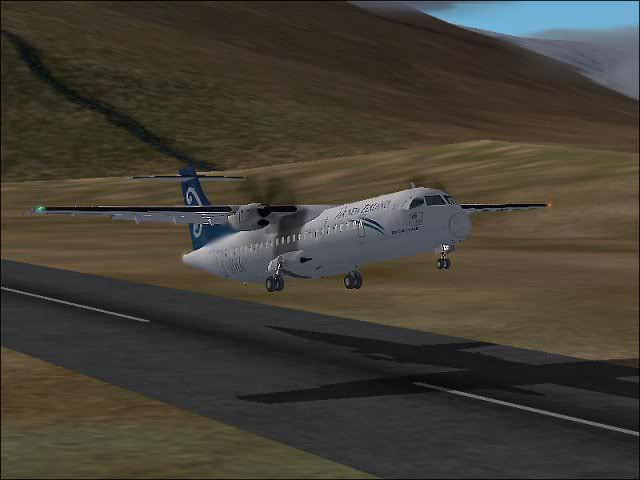
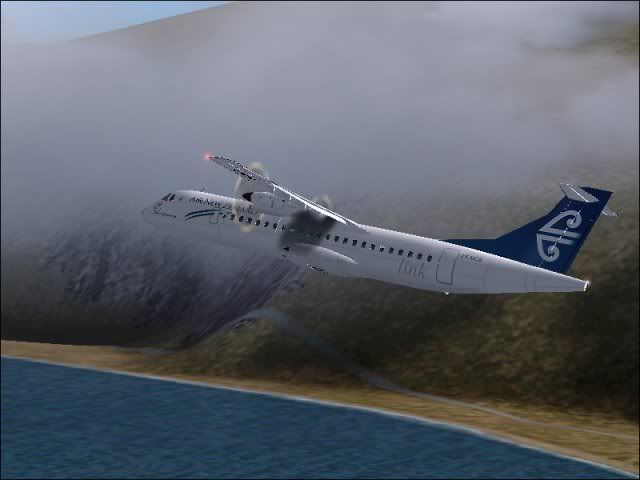
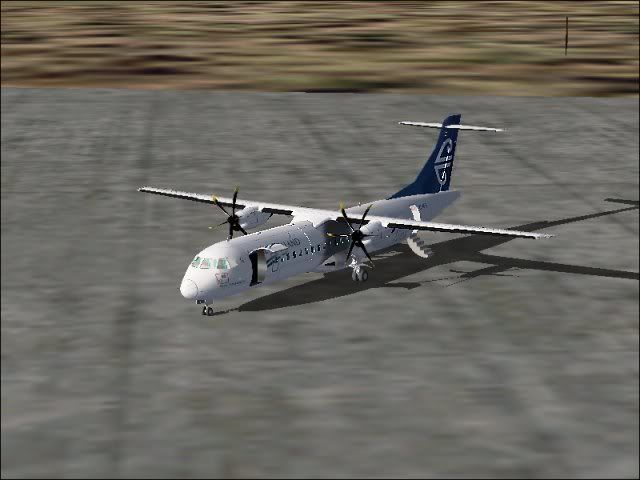
Good job Daniel- looking much, much better than your last set!
QUOTE
Nice pics! BUT ... doesn't look like your AA is working. You can see bad "jaggies" on the slightly off-horizontal lines.[/quote]
Compared to his last screenshot post, yes I think he does have AA working- perhaps only set to 2x rather than 4x or 8x like most others have.
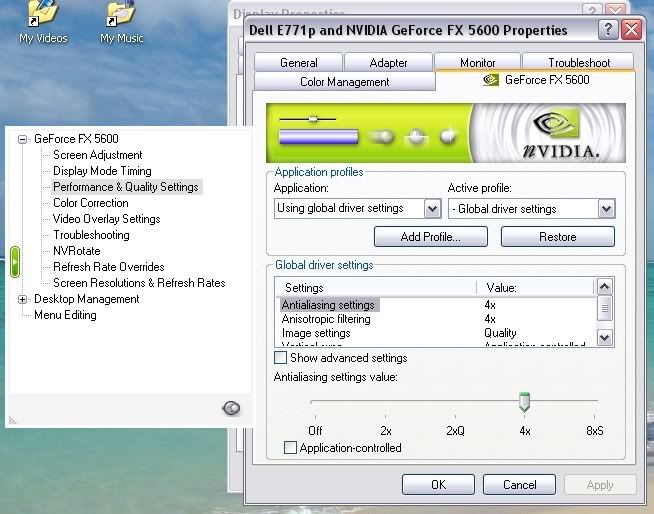
As others above have said- don't check the Anti-Aliasing in the fs2004 Graphics menu, instead, go to your display properties > settings > display > then click the tab with your graphics card name in it > you should then find a section named 'performance and quality' or something simular (as seen below > under that section, untick the application controlled box, and slide the bar up as far as it will go without you recieving display issues. Generally setting it to 4x will give you much sharper graphics in all your games

Posted:
Tue May 13, 2008 6:21 pmby Daniel
Trolly wrote:As others above have said- don't check the Anti-Aliasing in the fs2004 Graphics menu, instead, go to your display properties > settings > display > then click the tab with your graphics card name in it > you should then find a section named 'performance and quality' or something simular (as seen below > under that section, untick the application controlled box, and slide the bar up as far as it will go without you recieving display issues. Generally setting it to 4x will give you much sharper graphics in all your games
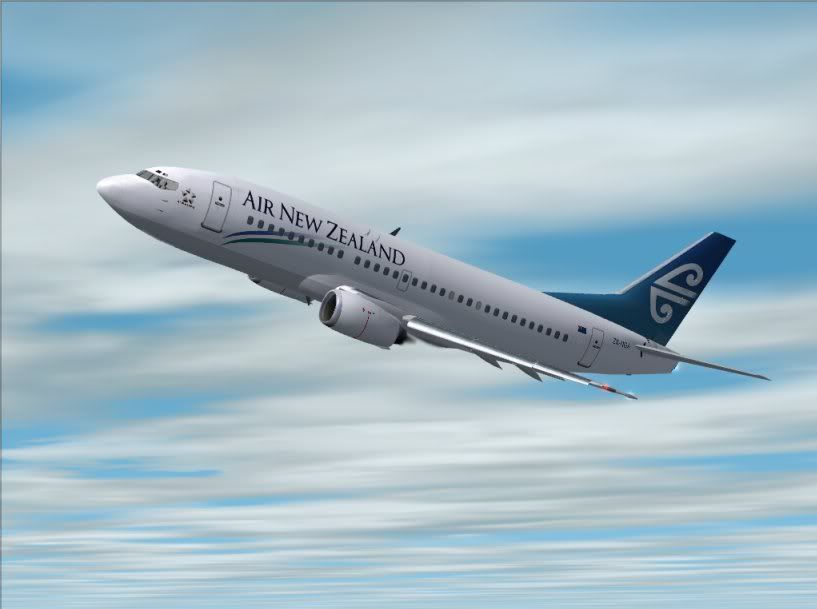
Thanks very much. I finally think i have set it correctly with your helpful instructions

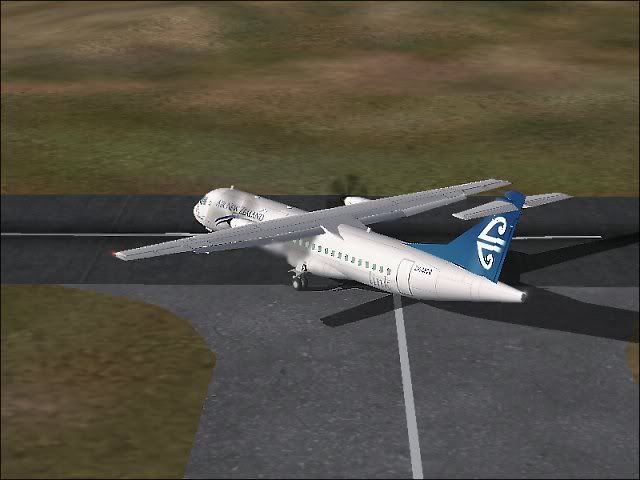
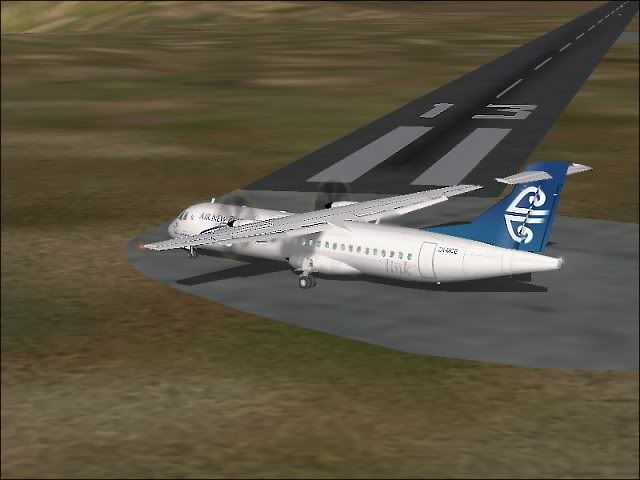
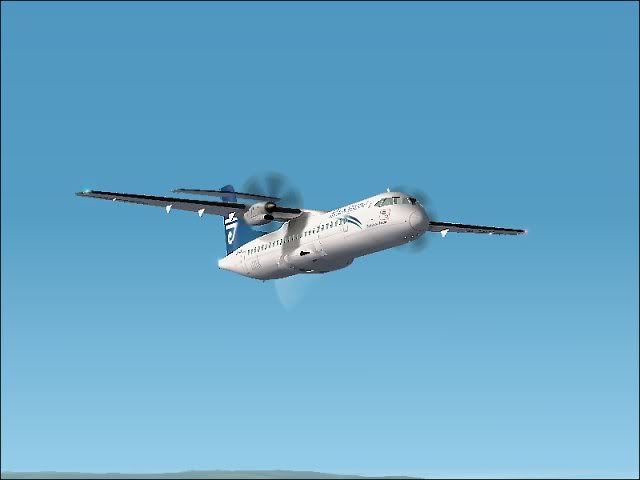
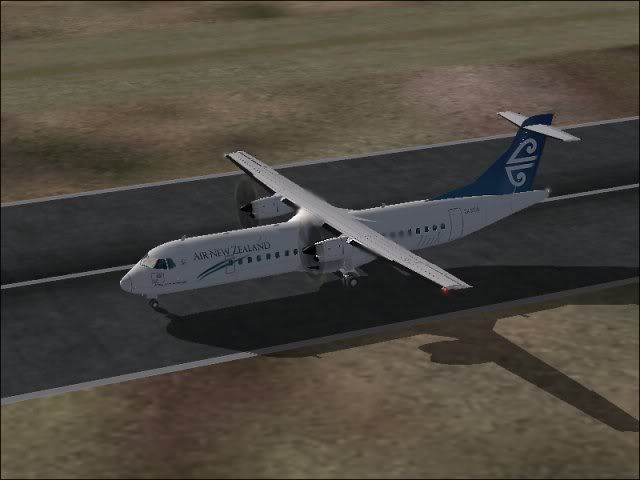
Now i can see what you mean. Here is a shot.
Cheers
Daniel
Posted:
Tue May 13, 2008 6:23 pmby ardypilot
That's much better! Hope you enjoy flying in a much better looking sim now

Posted:
Tue May 13, 2008 6:40 pmby Adamski
Daniel wrote:Thanks very much. I finally think i have set it correctly with your helpful instructions
Now i can see what you mean. Here is a shot.
Cheers
Daniel
Yes ... *much* better! It's best to experiment a bit - some AA settings are "overkill" ... and just make the whole image too soft for my liking. Also - it'll always be a trade off between smoothness and frame rate hit!
Posted:
Tue May 13, 2008 7:14 pmby Alex
Superb Daniel - huge difference.
Alex