Information
Vatsim is an online world network of people interested in Flight Sim. You are able to connect to the network as a pilot or undertake training to manage the airways as ATC. For the purposes of this post I will concentrate on connecting to fly as a pilot.
Registration
To join Vatsim head over to Vatsim, and click the Join Now button. After reading the Code of Conduct and the following page enter your details with a valid email address. You must use your real name to connect to the Vatsim network.
The NZ division of Vatsim is named VATNZ
Software
There are currently two versions of the connection software, SquawkBox and FSInn. Personally I think Squawkbox is cleaner (ie less fussy in design) and easier to configure. Others like FSInn. It's all personal preference as they do the same things but for this post I will concentrate on Squawkbox.
Download the latest Squawkbox software 3.1 from http://squawkbox.ca/downloads/ and install onto your PC. It's a One-Time download that includes all the plane model sets so you don't need anything else.
The system also includes its own voice software, so in the end there's only one FS module running with no other programs.
Installation
I have used screenshots with my details in them, so of course use your own name, member number and password. This information is mirrored here
1. Click Modules / Start Squawkbox

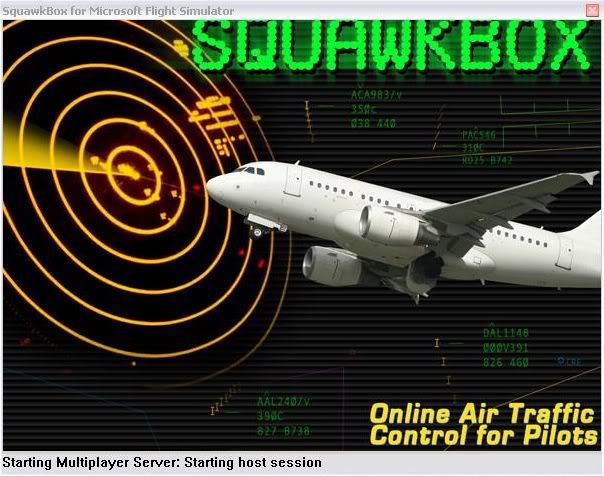
2. Squawkbox loads
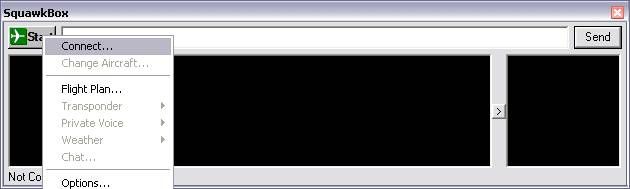
3. Click Start / Connect
4. Fill in your details. Select a server (Oceania for NZ is closest but can be any server - they all inter-connect), Enter your User ID, password (numerical),callsign, home airport and full name.
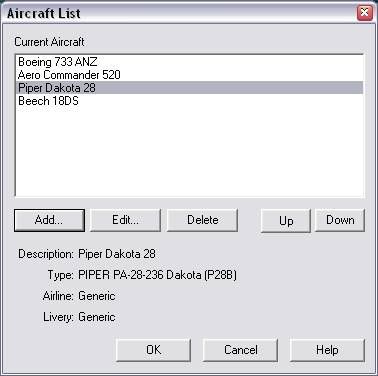
It will show the last plane you flew. To add a new plane, click Aircraft List.

5. Click Add
6. Type in a descriptive name for your aircraft, then click Search
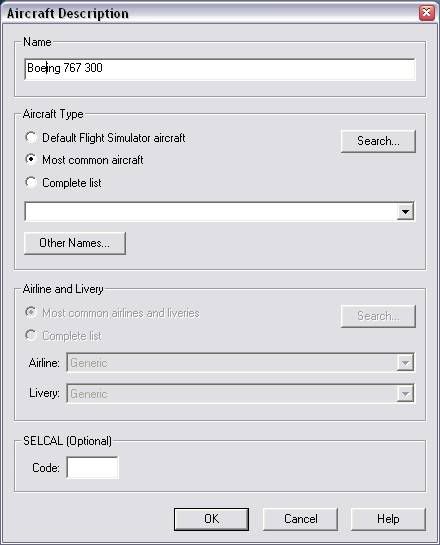
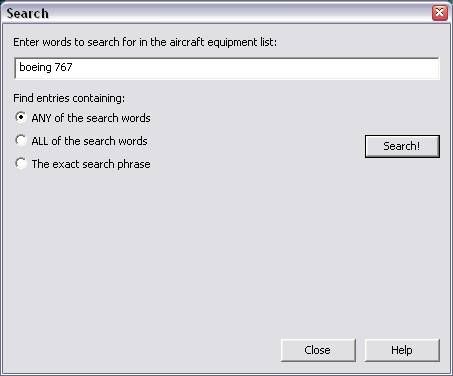
7. Enter a search phrase in the Aircraft Type section. I am looking for a 767 300 in Air New Zealand Livery.
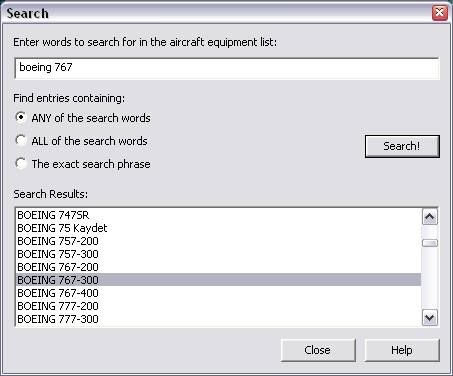
8. Scroll through the results and double-click the aircraft you want.
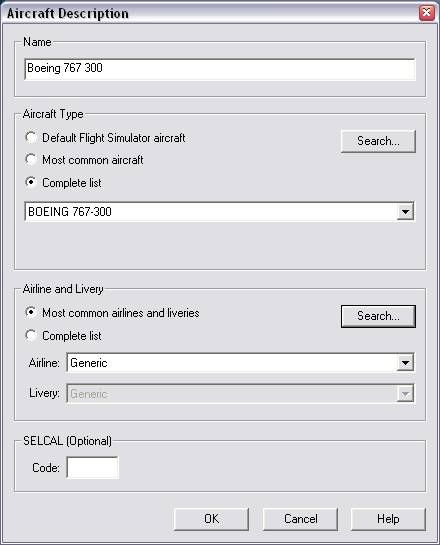
9. Now click Search in the Airline and Livery section.
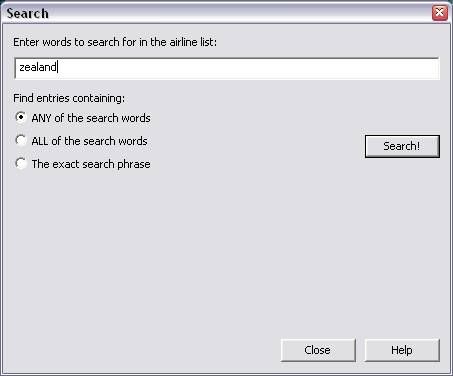
10. Enter a search phrase. Use the most unusual of any search term words. If I typed Air New Zealand it will also show results for all airlines with 'Air' and 'New' in them!
11. Double-click the desired result.
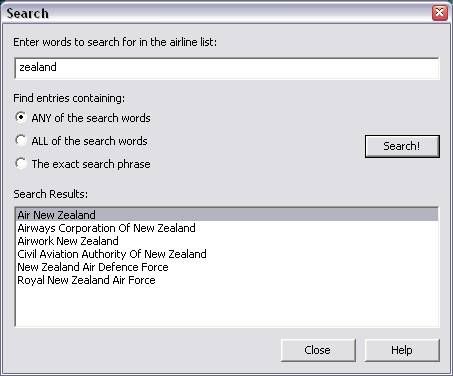
12. Now you have the aircraft and livery selected. You only need to do this once as it will remember this particular setting. Click OK.

13. You are back to the plane select screen with your new plane showing. Click OK, and on the next screen, press Connect.

14. Connecting to the network...
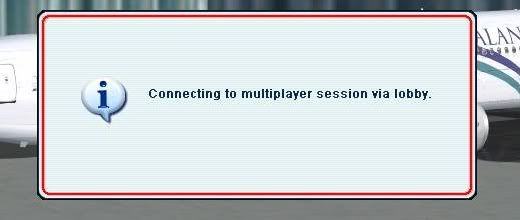
... and, Connected!
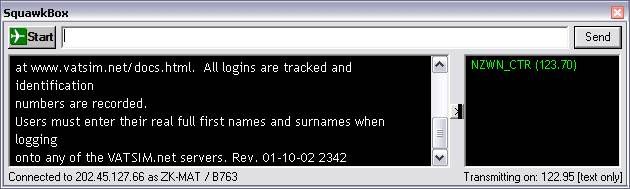
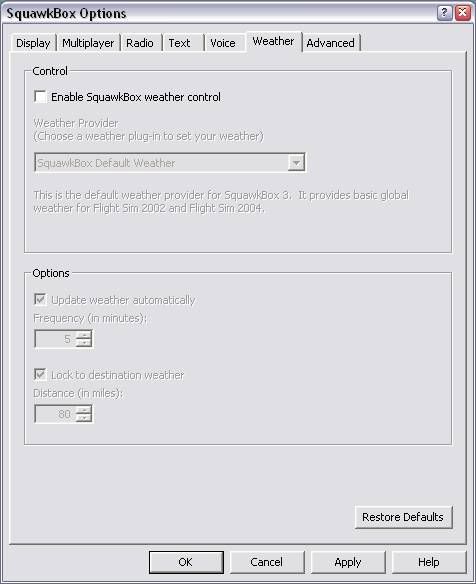
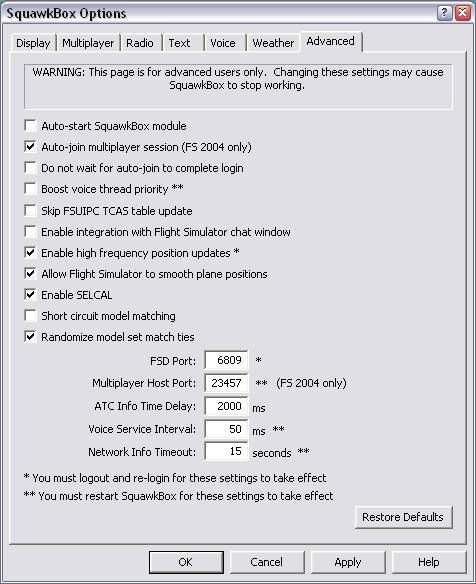
15. Now here's an overview only of the options. To get to them, in Squawkbox click Start / Options. These are my settings, you may experiment with yours as you like. Remember what you selected as your voice buttons.
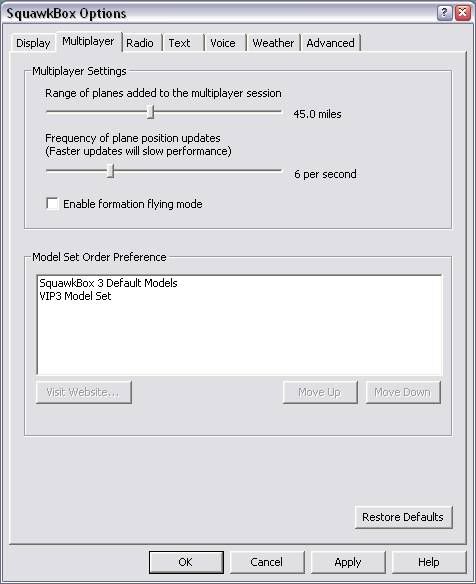
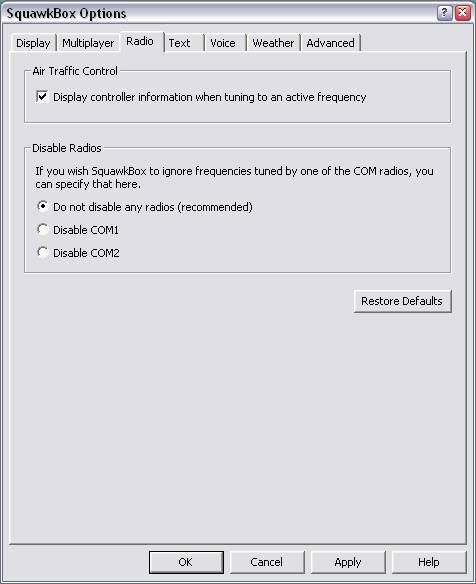
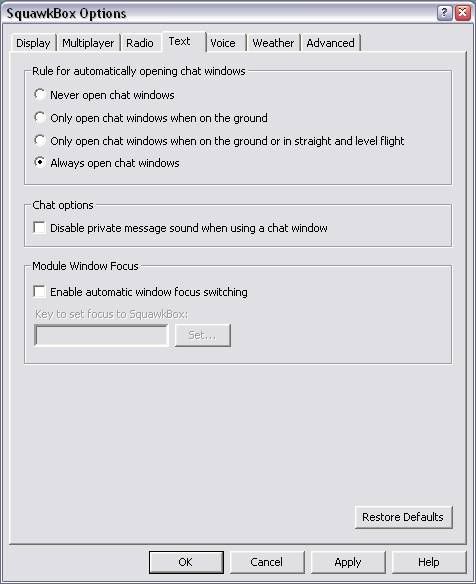
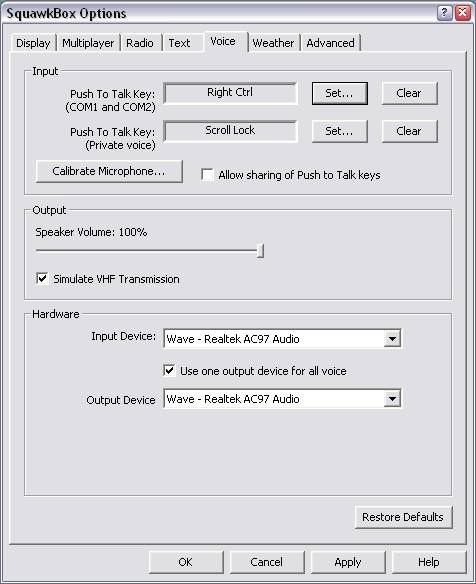
(I use ActiveSky so don't use SB weather)
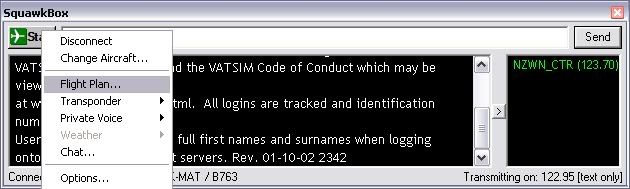
16. You now need to file a flight plan. This is so others know your intentions, and is the basis on which ATC will give you clearance. Click Start / Flight Plan.
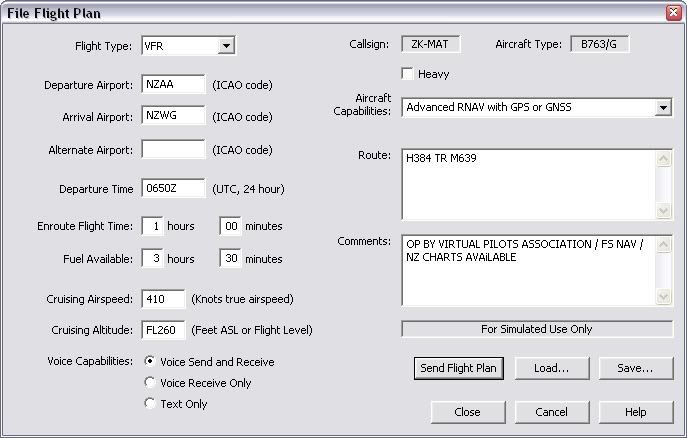
17. Complete Flight Plan appropriately, when finished, Click Send Flight Plan.
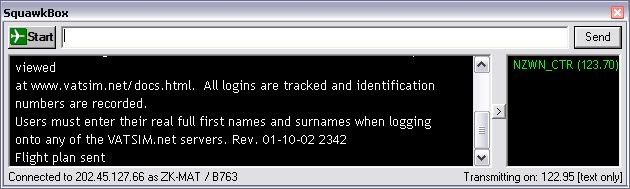
18. In the bottom of the Squawkbox display it should say Flight Plan sent, as below.
19. On the far right of the Squawkbox display is a list of ATC that are in range. If there are none, tune your Comm 1 radio to Unicom, which is 122.80, you will be able to communicate with others, also on Unicom, via text.
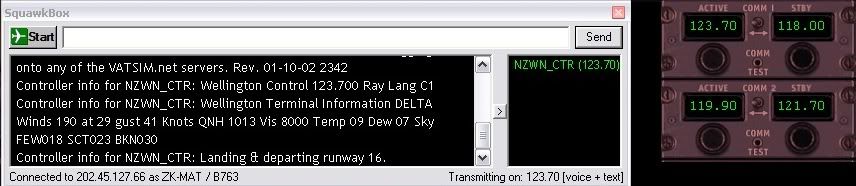
Use text to announce your intentions. If you receive a private message box from an ATC to connect to them, tune your Comm 1 radio appropriately, as below. You will see, in the Sqawkbox window, details of the controller you have connected to.
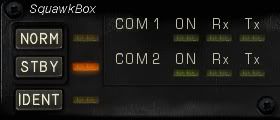
20. Finally, this is the Squawk status Indicator. You normally would tune your transponder to whatever Squawk code the ATC gives you (ie change from the default of 1200 to 5503 etc).
Once you enter the runway or when told to, change from Stby (Standby)to Norm(al) 'Squawk Mode Charlie'. If asked, clicked the Ident button, which assists the ATC in locating you on their radar.
The green lghts also light up when Connected to an active ATC (on), Transmitting or Receiving.
I think that's all for now. You may use ServInfo to see who is online on Vatsim and IVAO at any one time. It's a handy utility, not as featured as the Eye of IVAO but it does the job.
If you want further help, post in the forum!
Matt
Revised 16 January 2007 - Reason: Updated URL for VATNZ