Flashing ground textures at NZCH.These appear on the tarmac mainly, centred around the International gates. As you move the view, textures will pop in and out.
This first showed up right before release, I'd finished the final scenery work -- adding a phototextured runway at West Melton -- and then I went to my favourite gate, the dual gate 30, and the ground started flashing. I reverted to a previous good install, and added files one by one until I found the culprit -- the West Melton runway. Don't ask me how, it doesn't make much sense at the moment, but I have some ideas.
So I removed West Melton entirely from the release version, rather than hold it up any longer. The initial release didn't have it, and didn't have the flashing textures, but it did have one little lower-case 'o' rather than an upper-case 'O' in the add-on.xml file, which Prepar3d itself didn't mind at all, but GSX did. So I quickly fixed this and reuploaded.
Except for some stupid reason, and I still can't believe I did this, I edited the install script from before the NZWL removal!
This is now fixed, and I'm happy with the current installer, but those who downloaded the version with NZWL can either redownload, uninstall and reinstall NZCH, or do a manual quick fix themselves.
If you do reinstall with the fixed installer, you must run the uninstaller first, and make sure that the GodzoneNZCH folder doesn't include any reference to NZWL! The uninstaller will also put the deactivated Orbx NZWL files back.
So, what's the quick fix?
Go to the GodzoneNZCH folder where the installer put the scenery. You should see the Scenery and Texture folders there.
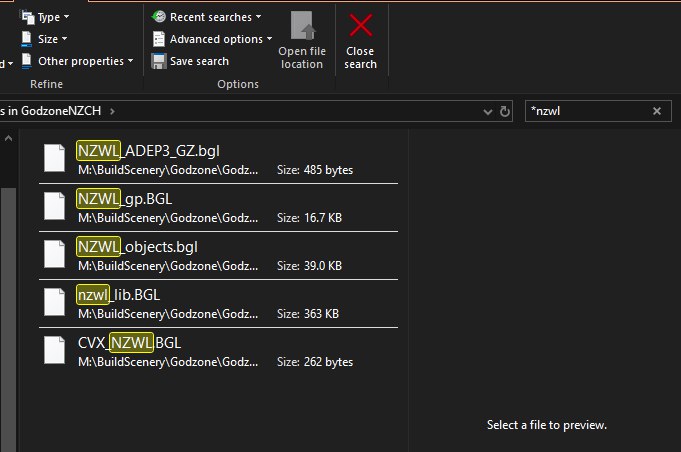
In the search box, type '*nzwl' -- that '*' is shift-8 on your keyboard. This should find all the files with 'nzwl' in the filename.
Then click on a blank area of the file list, to give it focus, and Ctrl-a should select all the files, or you can select them any other way, and press 'delete' to remove them. You can also select and delete them one by one if you want.
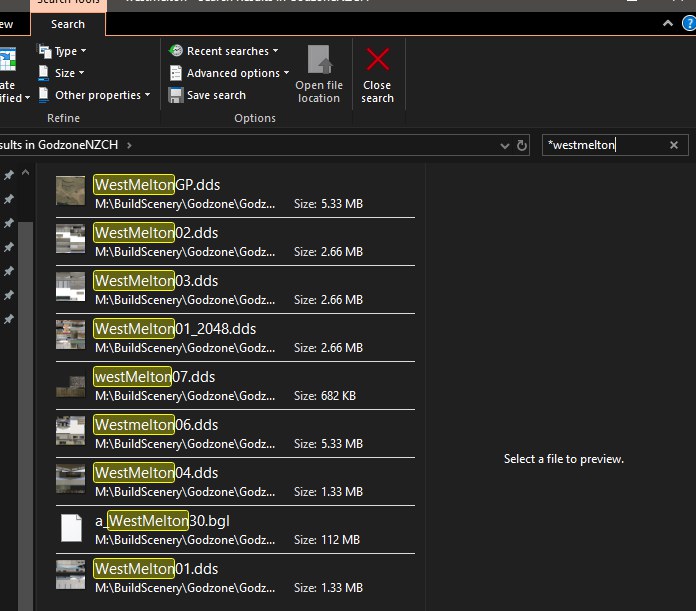
Then clear the search box, and do the same with '*westmelton'.
Once again, delete these files.
Make sure you are only deleting westmelton files, don't just search for 'west'!
That's it. This will put your NZCH install back to where it would be if you redownloaded, uninstalled and reinstalled.
If you use Orbx NZSI, and plan to visit West Melton at any time, you should really do the uninstall/redownload/reinstall way, as this will put the Orbx files back for West Melton. You can also do this yourself, if you know what you are going, just remove the extra extension I've added to the Orbx file names so that they end with '.bgl'


 ).
).